Run Claude Cowork with FREE Local AI Models
No Anthropic API key needed — route AI through Ollama or LM Studio
Why Claude 3P (Third-Party Inference) Exists
Some organizations — like banks, hospitals, government agencies, or large international companies — have strict rules about where their data can go. They simply aren't allowed to send employee conversations or sensitive files to Anthropic's servers.
Industries operating under strict compliance, privacy, and data residency requirements need employee conversations and confidential documents to remain inside approved infrastructure.
Claude 3P was introduced to solve this without a completely separate product. The same Claude experience runs normally, but AI inference routes through the company's own cloud (like their AWS or Google Cloud account). Conversation history also stays on the user's local machine instead of Anthropic's backend.
What Does "3P" Mean?
The "3P" stands for third-party — the AI is powered by a third-party cloud provider rather than Anthropic's own infrastructure. In short: same Claude product, but your data never leaves your own cloud environment.
Caveat
Skills Marketplace features are not available in 3P mode because they require Anthropic-hosted inference.
Key Benefits Beyond Data Privacy
Enterprise Billing
Use Claude Cowork capabilities based on your existing cloud provider tokens — e.g., AWS billing or Azure billing.
Centralized Security Controls
IT administrators can manage and secure access, control budgets, and monitor workflows centrally through their own cloud portals.
Custom LLM Routing
Route Cowork usage through internal proxies like Ollama or LM Studio, or connect to Ollama Cloud for faster, free inference.
Enable Third-Party Inference in Claude Desktop
Download and install the Claude desktop application for Windows or macOS, then follow these steps:
- Open the app and click the hamburger menu (☰)
- Go to Help → Troubleshooting → Enable Developer Mode → Enable
- Return to the hamburger menu — you'll now see a Developer option
- Click Developer → Configure Third-Party Inference
In the configuration panel, set:
Credentials KindStatic API Key
Gateway Base URLYour Ollama or LM Studio API URL
Gateway API KeyAnything (unless you've set a password)
Auth SchemaBearer
Setting Up Ollama
Download and install Ollama from ollama.com. After installation, increase the context window from the default 4K to 16K or 32K in settings — this is the sweet spot for most tasks.
Download a model. We recommend starting with Gemma 4 E4B:
ollama pull gemma4:e4b
Model options and hardware requirements:
gemma4:e4b9GB RAM · 128K context
gemma4:31b20GB RAM · 256K context — better for coding & reasoning
gpt-oss:20b14GB VRAM · 128K context
Connecting Claude to Ollama
The Ollama API runs locally at:
http://localhost:11434
Set this as the Gateway Base URL. After saving, click Test Model Discovery — you'll likely see zero models discovered. This is because Claude only recognizes models whose names start with Opus, Sonnet, or Haiku.
Fix this by creating a model alias:
# Stop any running model first
ollama stop gemma4:e4b

# Create a Claude-compatible alias
ollama cp gemma4:e4b claude-opus-4.8

# Run it
ollama run claude-opus-4.8
Click Test Model Discovery again — Opus will now appear. Relaunch the Claude app to start using it.
Using Ollama Cloud (Free & Faster)
Don't want to run models locally? Ollama Cloud gives you free usage on top models like gpt-oss or Gemma 4 31B Cloud — and they run much faster than local inference.
# Pull the cloud model
ollama run gemma4:31b-cloud

# Create a Claude-compatible alias
ollama cp gemma4:31b-cloud claude-sonnet-4.6
After model discovery you'll have two models — local and cloud. You can switch between them mid-task. Cloud models respond noticeably faster.
Setting Up LM Studio
Download and install LM Studio from lmstudio.ai. Open the app and browse for a model — the colour indicators tell you hardware compatibility:
Red
Not compatible with your hardware
Green
Fully compatible
Partial
Compatible with a quantized version
Once your model is downloaded:
- Go to Settings and turn on the local server
- Copy the API URL shown
- In Claude: Developer → Third-Party Configuration
- Paste the URL as the Gateway Base URL (keep all other settings the same)
- Load a model from within LM Studio
Configuring LM Studio Models for Claude
Like Ollama, Claude requires model names matching Opus/Sonnet/Haiku. Use the lms CLI to manage and load models with compatible identifiers:
# List downloaded models
lms ls

# List currently loaded models
lms ps

# Unload a model
lms unload qwen/qwen3.5-9b

# Load with a Claude-compatible identifier and increased context
lms load qwen/qwen3.5-9b --context-length 32768 --identifier "claude-haiku-4.5"
Click Test Model Discovery in Claude — Haiku will now appear. Save and restart the app.
Recommended Blogs
Read Our Blogs
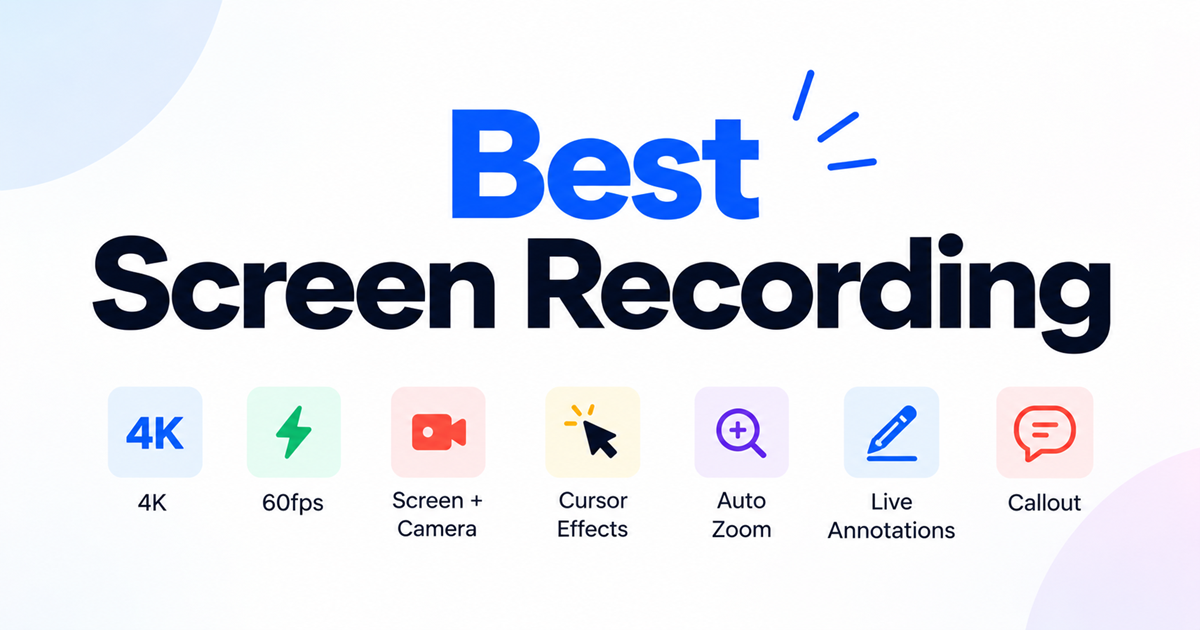
Best Screen Recorder Tools: What to Look For in 2026
What makes a screen recorder good in 2026: recording quality, AI transcription, editing, and privacy — plus a checklist before you choose one.
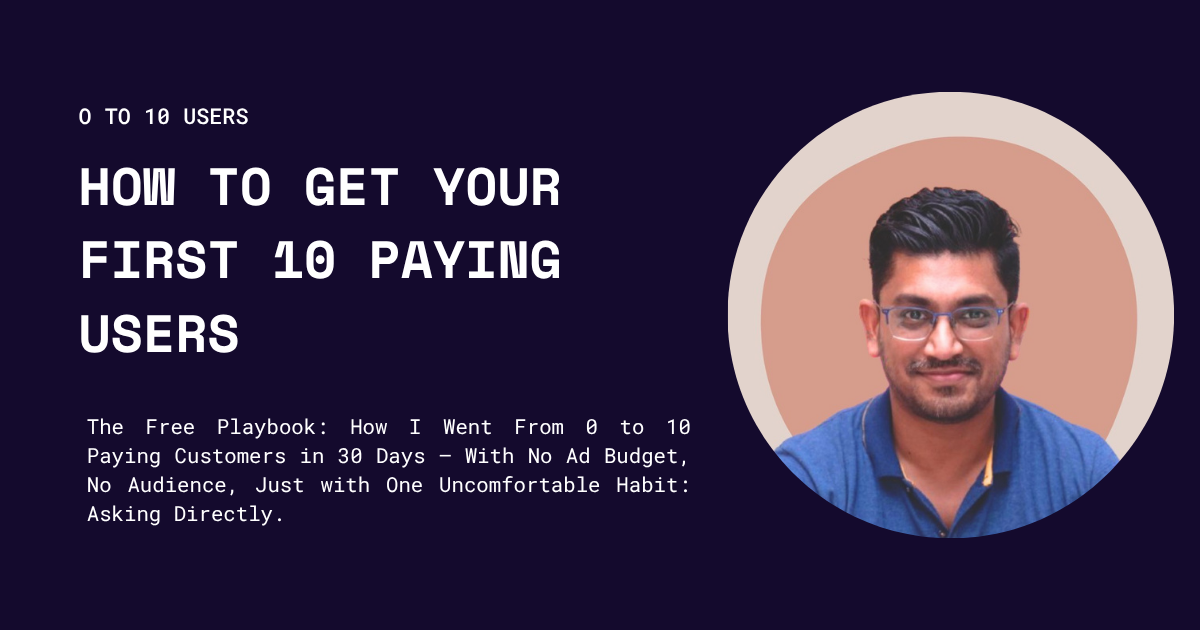
How to Get Your First 10 Paying Users: A Step-by-Step Playbook for B2B and B2C SaaS Founders
Why the first ten matter more than the next ten thousand - and exactly how to find them.